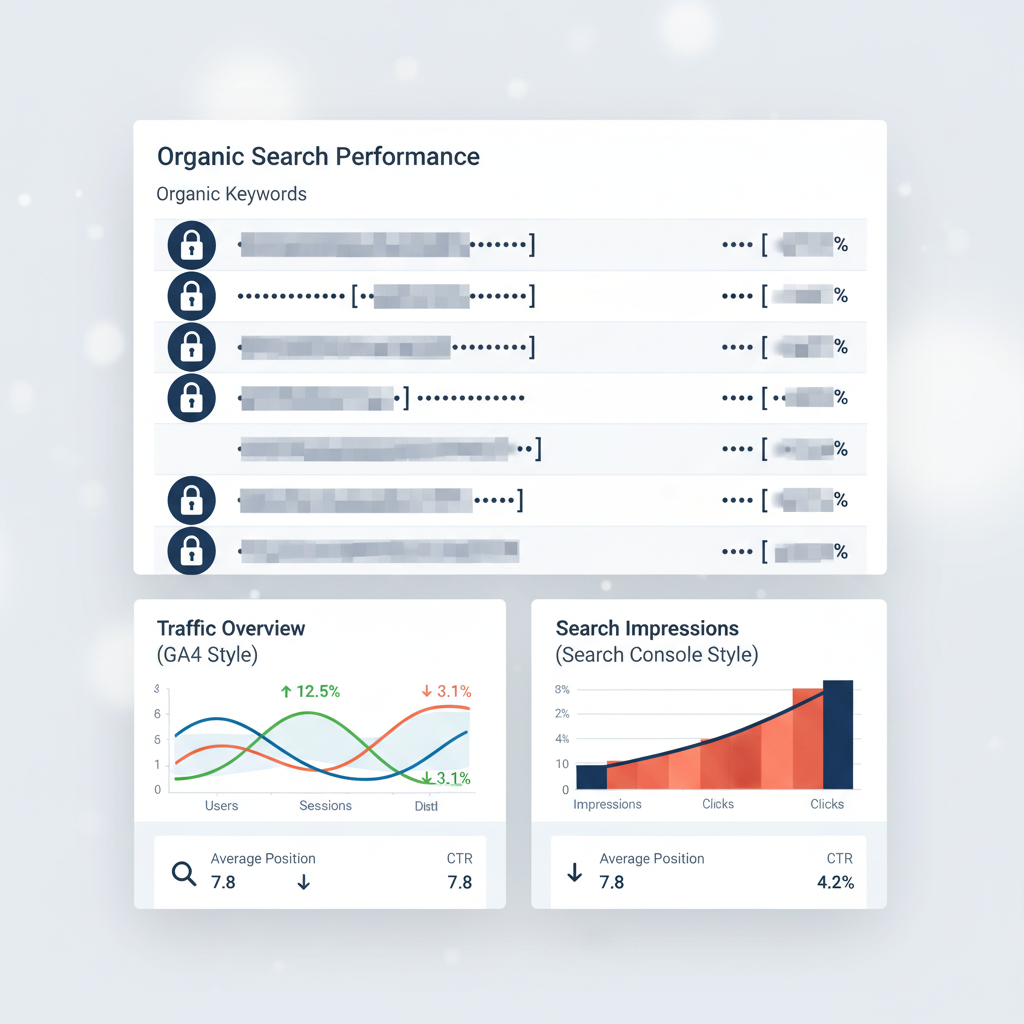
Quick answer: Shopify's GA4 shows "(not provided)" because Google encrypts search queries. Linking Search Console to GA4 restores keyword-level reports, though it doesn't populate every GA4 report automatically. A second, newer blind spot compounds this: AI assistants like ChatGPT, Perplexity, and Gemini often send Shopify traffic with no referrer, so GA4 logs it as Direct instead. Fixing both requires Search Console linking plus a dedicated AI referral channel group.
Key takeaways
- "(not provided)" in GA4 is a Google privacy behavior, not a Shopify misconfiguration. Linking Search Console recovers query data, but only in two dedicated reports.
- AI assistants (ChatGPT, Perplexity, Gemini) often send Shopify traffic with no referrer, so GA4 defaults it to Direct unless you build a channel group to catch it.
- A custom GA4 channel group matched against known AI referrer domains, paired with UTM tagging, reclassifies most of that traffic out of Direct.
- Fixing GA4 tells you AI is sending traffic. It doesn't tell you whether AI trusts your brand enough to keep recommending it.
If you open Google Analytics 4 for your Shopify store and the organic keyword report is nearly empty, you're not misconfigured. This is the Shopify Google Analytics "not provided" problem, and it now has two layers stacked on top of each other. The first is old: Google has hidden search-query data behind "(not provided)" since 2011, and GA4 never brought it back. The second is new: AI assistants like ChatGPT, Perplexity, and Gemini are sending Shopify stores real traffic and real orders, but that traffic frequently shows up with no referrer at all, so GA4 files it under Direct instead of AI.
Most GA4 guides only fix the first problem. This one fixes both, in the order a Shopify merchant actually needs them: recover the keyword data you can get back, then stop AI-driven sessions from disappearing into a channel that tells you nothing about where they came from.
Why Google Analytics 4 shows "(not provided)" for your Shopify store
GA4 shows "(not provided)" for organic keywords because Google encrypts search queries for logged-in users and never passes the search term to the destination site. This is a platform-wide privacy behavior, not a bug in your Shopify setup or theme. SEO-Stuff's 2026 guide confirms GA4 does not expose organic keyword data in standard reports by design, and the 1hold FAQ states plainly that Search Console linking is "the definitive solution," not a GA4 setting you're missing.
If you've been digging through GA4 settings looking for a toggle to turn keyword data back on, stop. It doesn't exist. The fix lives outside GA4, in Google Search Console.
The fix: link Google Search Console to GA4 (and what it doesn't fix)
Linking Google Search Console to GA4 restores query-level data, but only inside two dedicated reports. It does not populate keyword detail throughout the rest of GA4. Do this under GA4 Admin > Product links > Search Console links. Once connected, GA4 adds a Queries report and a Google Organic Search report under Reports > Acquisition > Search Console.
SEO-Stuff and 1hold both walk through this setup and agree on the same limitation: linking Search Console adds those two specific reports, it doesn't retroactively fill in keyword columns anywhere else in GA4. To get from "here's a query" to "here's what that query is worth," you still have to manually compare Search Console queries against your GA4 landing pages and Shopify conversion data. There's no single report that does this join for you automatically.
What linking Search Console actually adds
Two reports, not a global fix: Queries (search terms and their impressions and clicks) and Google Organic Search (the same data cross-referenced against landing pages). Treat these as a research tool you check periodically, not a live dashboard column that appears everywhere GA4 currently shows "(not provided)."
The new blind spot: AI referral traffic hiding in your Direct channel
By default, AI referrals are scattered across the Referral and Direct channels in GA4, which is why Shopify store owners often see a sudden jump in Direct traffic right around when AI assistants start surfacing their products. Naridon's Shopify AI traffic guide and Dev.to's writeup on ChatGPT referral hiding both document this pattern: a customer asks ChatGPT for a product recommendation, clicks through, and GA4 records the visit as "direct / none" because the AI platform didn't pass a standard referrer header.
The industry has started calling this "dark traffic": AI-influenced demand that reaches a store without clean referral attribution. Ecommerce Fastlane's attribution guide documents that some AI platforms strip referrer data entirely or route clicks through redirect URLs that never pass attribution information at all. The exact scale is genuinely hard to pin down. Even StoreBuilt's 2026 Shopify guide stops short of a precise percentage and recommends treating observed AI-referral revenue as a conservative minimum, not the full picture. Whether ChatGPT and Perplexity are actually recommending your store in the first place, versus just sending the occasional dark session, is a separate question covered in how to track AI visibility for your Shopify store; this article is specifically about the GA4 measurement mechanics.
Google AI Overviews compounds this further. Click-throughs from an AI Overview show up as regular google/organic in GA4 and cannot be separated from other organic traffic without combining Search Console query data and landing page patterns, per Metricus. There's no separate "AI Overview" source by default, so this traffic hides inside your existing organic numbers rather than Direct, making it even harder to isolate without deliberate setup.
How to build a custom GA4 channel group for AI referral traffic
A custom GA4 channel group that matches known AI referrer domains reclassifies AI-driven sessions out of Direct so you can measure them on their own. Build it under GA4 Admin > Data display > Channel groups > Create custom channel group, and define a rule that matches session source against the domains below, then reorder the channel above the default Referral channel. Semrush's guide to tracking ChatGPT traffic and Get-Ryze's measurement guide both recommend this same approach: a named channel beats a filtered view, because it persists across every standard GA4 report instead of only the one you happened to build.
Referrer domains to match
| AI platform | Referrer domain to match |
|---|---|
| ChatGPT | chatgpt.com, chat.openai.com |
| Perplexity | perplexity.ai |
| Gemini | gemini.google.com |
| Copilot | copilot.microsoft.com |
Match on "Session source" contains any of the above, and name the channel something explicit like "AI Referral" so it's unmistakable in every acquisition report going forward. Once this channel group is live, treat it as one input to a broader Shopify AI visibility checklist, not the whole picture — measuring the traffic is only step one.
Building the Exploration for revenue and conversion
Once the channel group exists, build a GA4 Exploration (GA4's flexible custom-report builder) filtered to that channel with revenue, conversion rate, and key ecommerce events as metrics. This is the report that actually answers the business question: not "did AI send visits" but "did AI send orders, and how do they convert compared to your other channels." Metricus's Shopify walkthrough reports AI referral conversion rates running 2-4x higher than standard organic traffic, attributed to visitors arriving with more specific purchase intent — though it cautions that sample sizes remain small for individual stores and vary by category, so isolate the channel yourself before assuming that multiplier applies to your store.
UTM tagging and troubleshooting when AI traffic still disappears
AI referral traffic keeps disappearing into Direct after channel-group setup for two common reasons: stripped UTM parameters or a regex that's too narrow. Tag any link placed where an AI assistant might cite or crawl it (product pages, comparison content, FAQ pages) with standard UTM parameters, the same way you'd tag a paid campaign. Ecommerce Fastlane and Paz.ai both flag that some AI platforms strip query parameters or route through redirect URLs during their own handoff, which is why UTMs alone aren't a complete fix. Pair them with the referrer-domain channel group above; don't use them instead of it, and accept that some AI-influenced sessions will always land in Direct no matter how well you configure GA4. Stores that need to catch more of those remaining sessions sometimes add server-side tracking as a further layer, though independently verified recovery-rate figures for that approach aren't well established yet, so treat it as a later step, not a day-one requirement.
The second common failure is regex that's too narrow. New AI referrer subdomains and platforms appear regularly. WRKNG Digital recommends checking your channel group's match list quarterly and testing it by clicking through from each assistant yourself to confirm the session lands in the AI Referral channel rather than Direct. If a known AI platform is sending clear referrer data and it's still landing in Direct, the fix is almost always a missed domain variant in the channel group, not a deeper tracking problem.
Reconciling Shopify's native analytics with GA4
Shopify's own Sessions-by-traffic-referrer and Sales-by-traffic-referrer reports won't match GA4 numbers exactly, and that's expected rather than a red flag. AdsX notes that Shopify's native analytics can show AI referrer domains but lacks the flexibility of GA4 Explorations and custom channels, which is why GA4 remains the primary tool for deep AI referral analysis. Use Shopify Analytics as a directional cross-check on your new GA4 channel group (confirm both tools show AI referral activity trending the same way) rather than expecting the totals to reconcile line for line.
If Shopify Analytics shows meaningful traffic from an AI referrer that your GA4 channel group isn't catching, that's a signal your regex needs another domain added, not that one tool is "wrong" and the other "right."
FAQ
Does linking Google Search Console to GA4 completely fix "(not provided)" for Shopify sites?
No. It adds a Queries report and a Google Organic Search report under Search Console in GA4, but it doesn't backfill keyword data into every other GA4 report. You still need to manually cross-reference Search Console queries against your GA4 landing pages and Shopify conversion data to connect a keyword to actual revenue.
Why is my Shopify GA4 Direct traffic suddenly so high?
A sudden, unexplained rise in Direct traffic with no matching change in your campaigns is worth investigating as AI referral activity before assuming it's a tracking error. ChatGPT, Perplexity, and Gemini frequently send click-throughs with no referrer, and GA4 defaults that traffic to Direct unless you've built a custom channel group to catch it.
How do I track ChatGPT and other AI referral traffic in GA4 for a Shopify store?
Build a custom GA4 channel group that matches session source against known AI referrer domains: chatgpt.com, chat.openai.com, perplexity.ai, gemini.google.com, and copilot.microsoft.com. Then build a GA4 Exploration filtered to that channel to see revenue and conversion rate. Pair it with UTM tagging on pages AI assistants are likely to cite, and widen the domain match list periodically as new AI platforms appear.
Is AI referral tracking worth the setup effort for a small Shopify store?
Metricus reports AI referral conversion rates running 2-4x higher than standard organic traffic, though it notes sample sizes are small and vary by category. Without a dedicated channel group, that revenue stays invisible inside Direct and looks like unattributed noise instead of a growing, trackable source. The one-time setup, a channel group plus an Exploration, is low effort relative to what it reveals.
Can I see AI referral traffic in Shopify's built-in Analytics, or do I need GA4?
Shopify's native Sessions-by-traffic-referrer and Sales-by-traffic-referrer reports can show some AI referral signal, but GA4's custom channel groups and Explorations give more control and clearer revenue and conversion detail. Use Shopify Analytics as a directional cross-check on what GA4 shows, not as a replacement for it.
Fixing "(not provided)" and isolating AI referral traffic both answer the same underlying question: is anyone actually finding your Shopify store through search and AI assistants, and is that traffic worth anything. That's a measurement question. Once it's answered, a different question follows: whether ChatGPT, Perplexity, and Gemini understand your brand and product catalog well enough to keep recommending it, not just whether a click happened to land on your site once.
That second question is what Uygen's done-for-you SEO + GEO service is built to diagnose and fix: whether AI systems can access, understand, and trust your Shopify store enough to cite it consistently across Google, ChatGPT, Perplexity, and Gemini. Fix your GA4 blind spots first, so the traffic is actually visible. Then see the Shopify SEO + GEO service for what happens once you can measure what AI is really sending you.
Still guessing whether AI traffic is actually reaching your Shopify store?
The done-for-you SEO + GEO service audits your GA4 and Search Console setup alongside on-page and schema fixes, then measures AI visibility across Google, ChatGPT, Perplexity, and Gemini every month.